 Start for free
 Application
 Consultation
Connect an AI assistant to Taskulu
You can connect an AI assistant to Taskulu, so it can read your projects and tasks and, if you allow it, create and update them for you. It works with any assistant or AI code editor that supports the Model Context Protocol (MCP) with sign-in, such as Claude, ChatGPT, Cursor, Claude Code or LibreChat.
You can connect an assistant to any organization you belong to, on every plan, including trials, unless its owner turned assistants off. You connect it in your browser. You can see and revoke your assistants in the web app, and soon in the Android and iOS apps.
What it can do
- Read: your organizations and projects, their boards, lists, statuses, labels and tags; your tasks across an organization; a project's tasks, with filters and search; a task's details, checklists, comments and attachment names; activities; and time logs.
- With Read & write access, also: create tasks and edit their title, description, dates, progress, weight, label, assignees, tags and dependencies; move tasks between lists and statuses in a project; archive and unarchive tasks; create and rename lists; add comments and edit your own; add and edit checklists and their items; and log time and edit your own time logs.
- Dates come in your calendar and time zone, including the Jalali calendar.
What it can never do
- Delete anything.
- Change organization or project settings or members, or create projects, boards, statuses, labels or tags.
- See people's emails, or the organization's teams, permissions or billing details. It sees only whether an organization's plan is active, and the names and usernames of people you can assign or mention.
- Create links that open without signing in, such as attachment downloads or invitation links.
- Read channel messages, direct messages or attachment files.
Connect
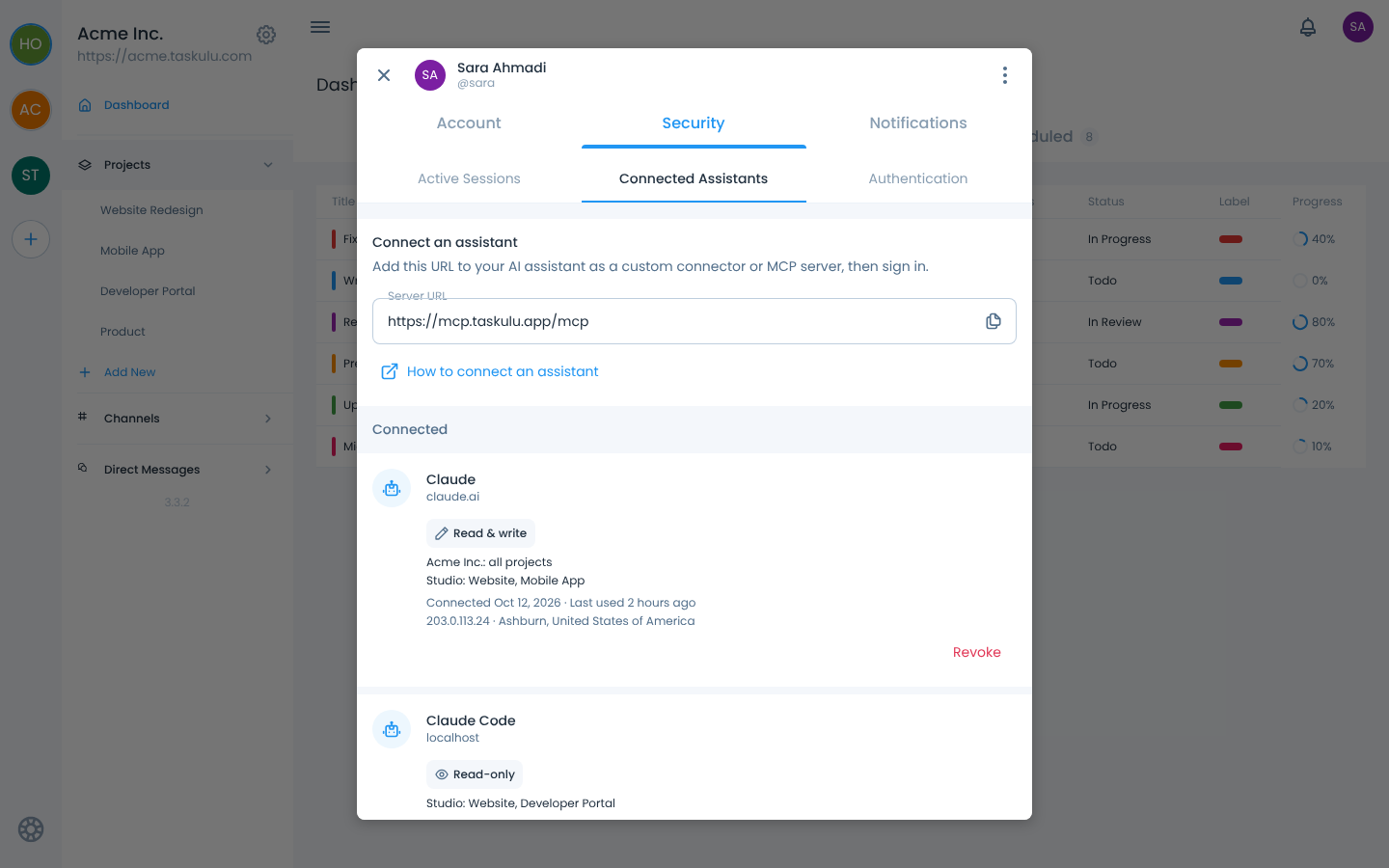
- Copy the server URL:
https://mcp.taskulu.app/mcpYou'll also find it in your profile, under Security › Connected Assistants.
- In your assistant, add it as a custom connector or a remote MCP server. Chat assistants usually call these connectors, plugins or integrations. Code editors and terminal agents have MCP settings.
For example, in Claude Code, run this in a terminal:
claude mcp add --transport http taskulu https://mcp.taskulu.app/mcpIn Cursor, add this under mcpServers in ~/.cursor/mcp.json, or .cursor/mcp.json in your project:
"taskulu": { "url": "https://mcp.taskulu.app/mcp" }Note: These steps change often, so check your assistant's documentation. Some assistants allow custom connectors only on certain plans, or only if an admin allows them.
- If your browser doesn't open on its own, start the connection in your assistant, e.g. with a Connect or sign-in button next to the server, or
/mcpin Claude Code. Your browser opens Taskulu. Sign in if asked. - Check the assistant's name and the address it returns you to. Assistants choose their own names, so only continue if you started this from that assistant.
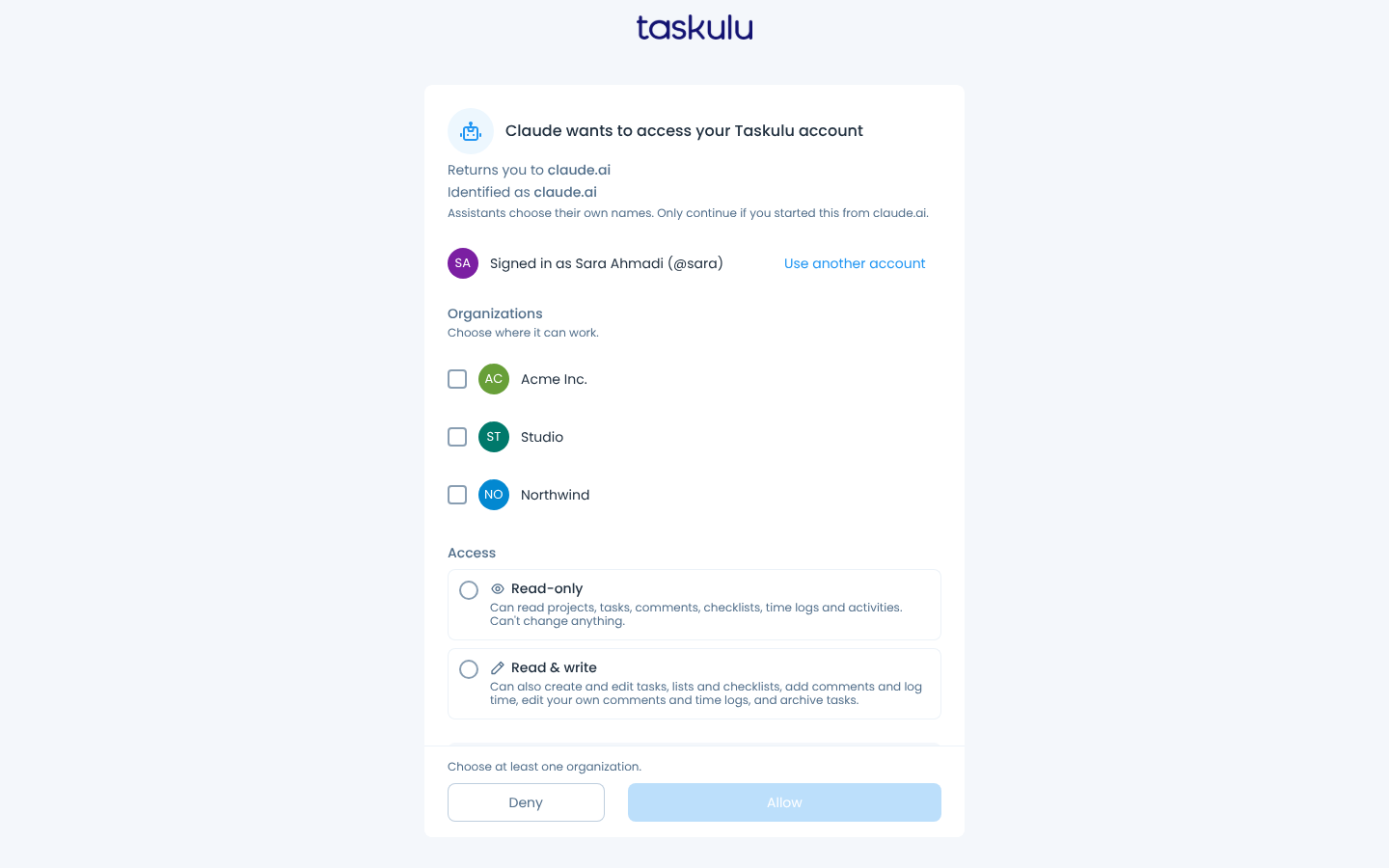
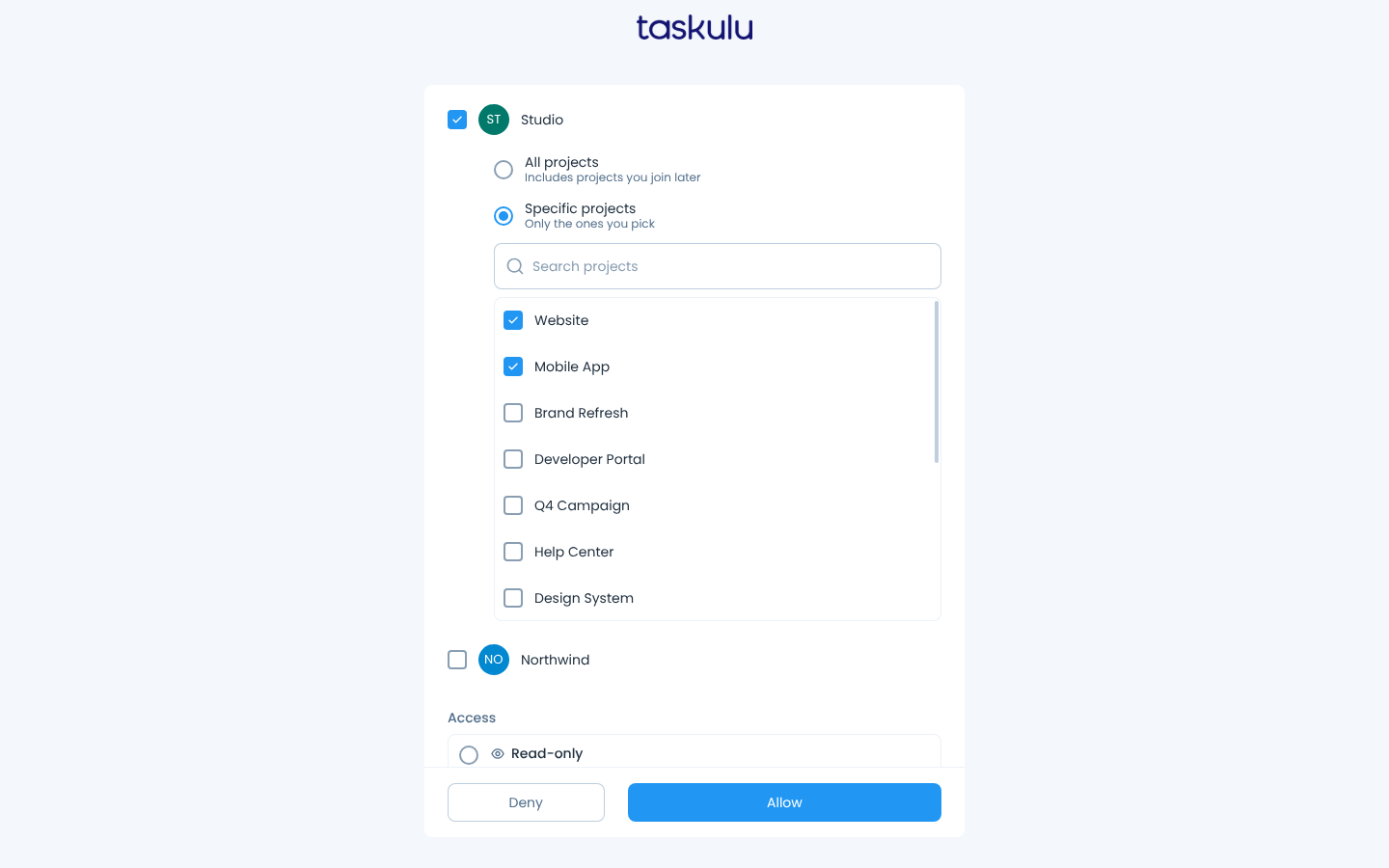
- Under Organizations, choose where it can work, and for each organization, All projects or Specific projects. All projects includes projects you join later.
- Under Access, choose Read-only or Read & write, then select Allow.
- Close the tab and go back to your assistant.
To change what an assistant can reach, connect it again with new choices. Each connection is separate, so revoke the old one when you no longer need it.
See your assistants, and revoke one
In the web app, open your profile, then Security › Connected Assistants. It lists the assistants connected now, each with what it can reach and where it was last used. For an assistant that runs in the cloud, such as Claude or ChatGPT, that's where its servers are, not where you are. Select Revoke to stop one.
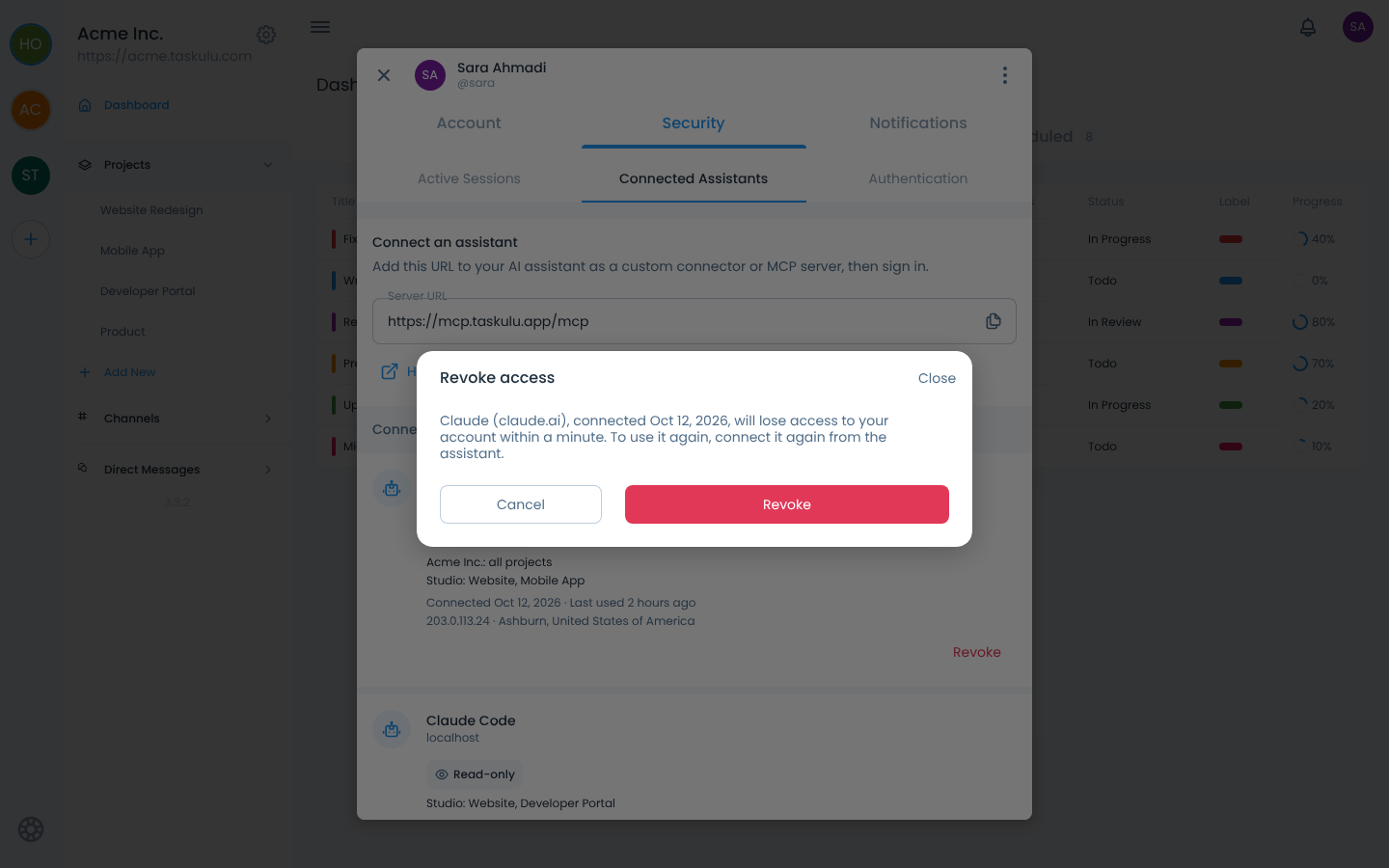
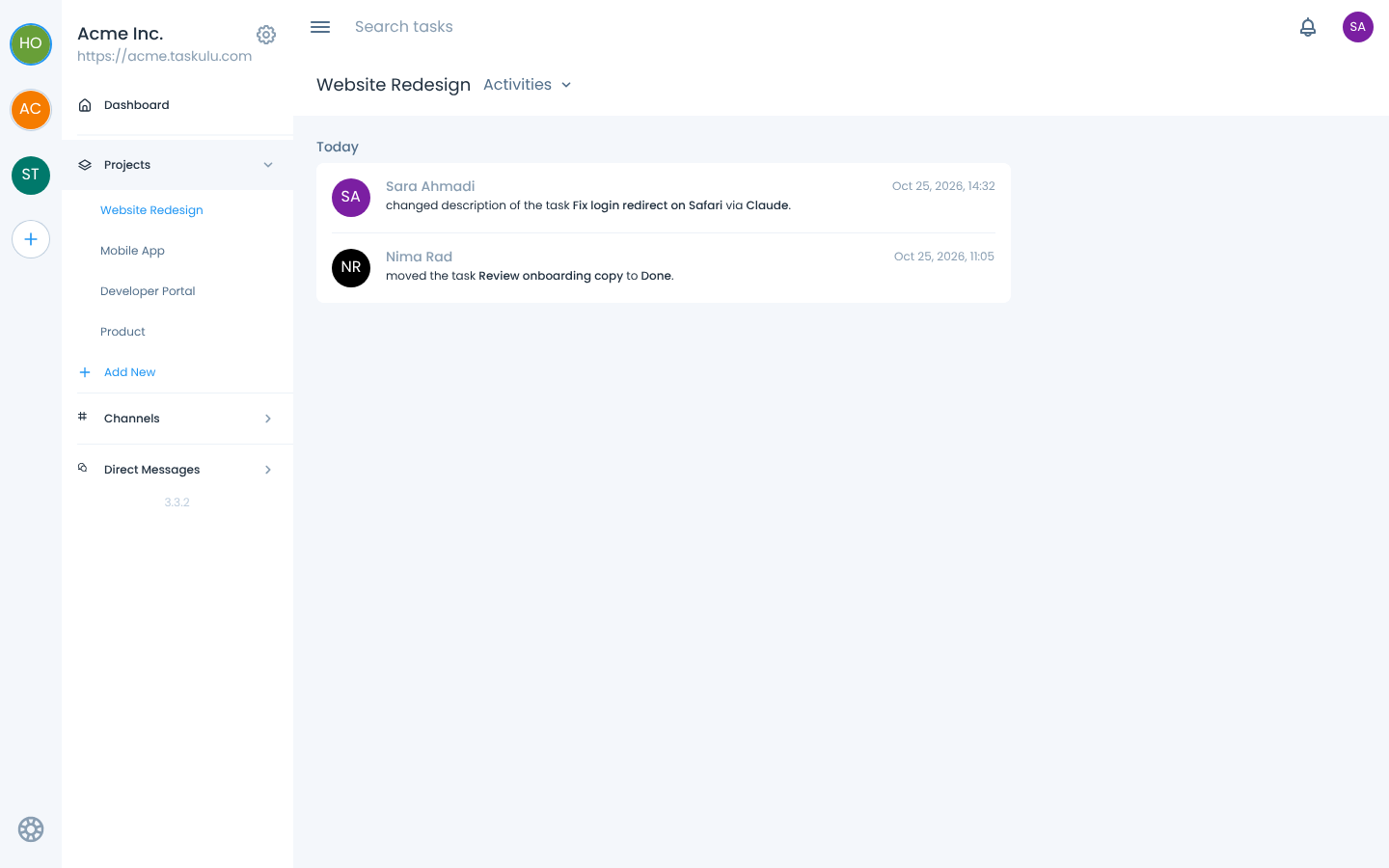
Project and task activities show which changes came through an assistant.
When a connection ends
A connection ends when:
- You revoke it in Connected Assistants.
- You change or reset your password.
- Your account is deactivated.
- It isn't used for 90 days.
- You disconnect it in your assistant, if the assistant supports that. If it still shows in Connected Assistants, revoke it there.
- Taskulu ends it, e.g. if an assistant is compromised.
An ended connection leaves Connected Assistants. Then connect again from your assistant, and revoke any assistant you don't recognize.
If you leave an organization or project, or are removed from it:
- The assistant loses access to it at once.
- Rejoining the organization, or a project you picked under Specific projects, doesn't bring it back. Connect again to include it.
- Under All projects, a project you rejoin is included again, as long as you stayed in its organization.
For organization owners
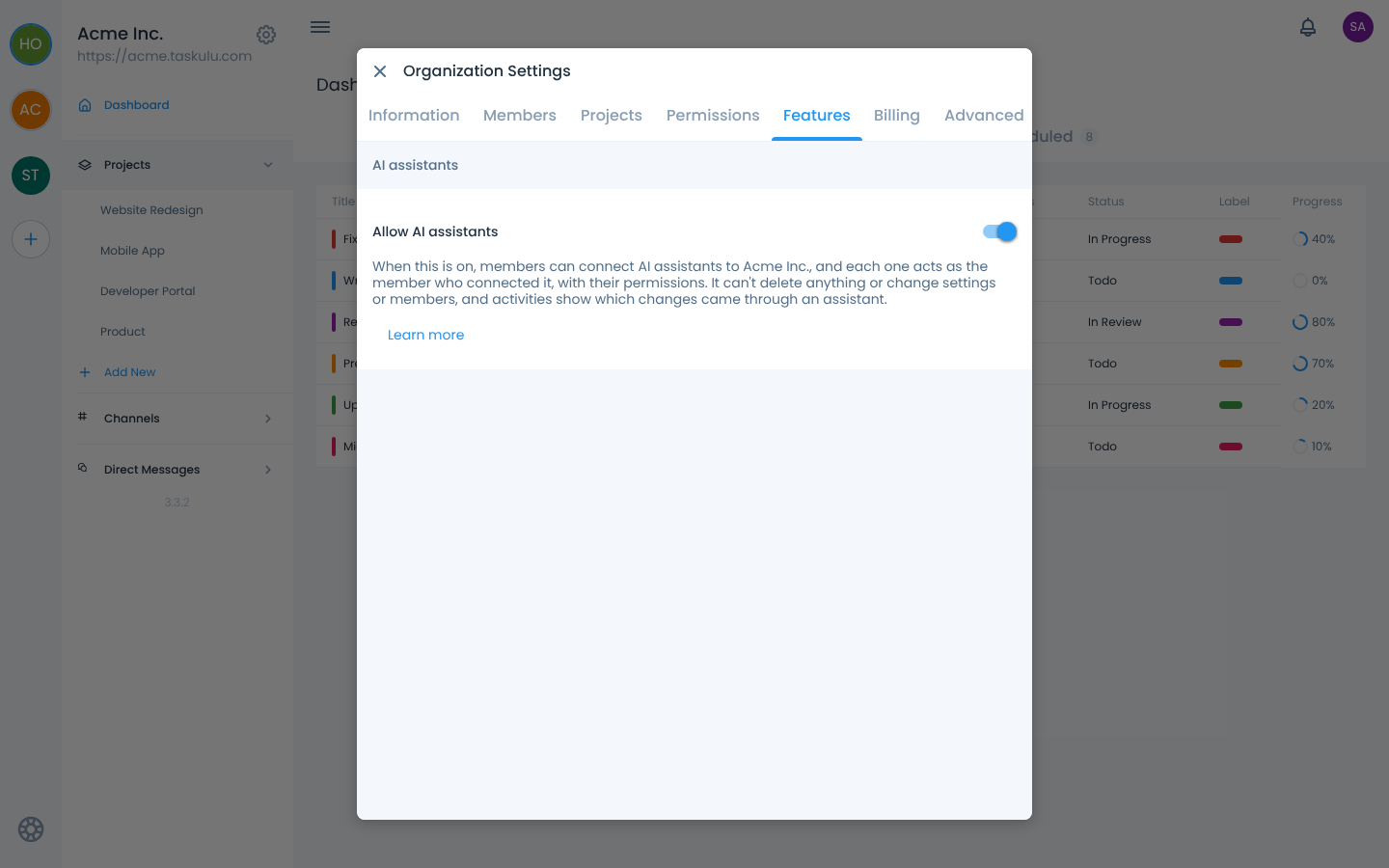
In the web app, Organization Settings › Features › AI assistants turns assistants on or off for your organization. It's on by default. While it's off, assistants can't reach the organization, but members' connections aren't removed, and those still connected work again when you turn it back on. If assistants stay off for 90 days, members may need to connect their assistants again. In activities, teammates see which changes came through an assistant, e.g. "changed the description via Claude."
Keep it safe
Assistants can be tricked by instructions hidden in tasks or comments that other people wrote. Taskulu limits what an assistant can do, but it can still copy what you can read into places others can read. When you can, choose Read-only or Specific projects, and now and then check the changes it made in activities.
Taskulu emails you each time an assistant is connected to your account. If you don't recognize one, revoke it, and end any session you don't recognize in Security › Active Sessions.
Troubleshooting
- Assistants are turned off for this organization: ask the organization's owner to turn them on.
- The organization has no active plan: someone who manages billing can pay the invoice or upgrade, in Organization Settings › Billing on the web app.
- The assistant can't change anything: the connection is Read-only. Connect again and choose Read & write.
- The assistant can't find a project or task: it may not exist, you may not have access to it, or it may be outside the organizations and projects you picked. If it's outside them, connect again and include it.
- It stopped working after you changed your password: connect again.
- Too many calls: wait a moment; the assistant is told when to try again. Reads also have a daily limit per person, so an assistant that reads a lot, such as going through many tasks one by one, may have to wait up to a day.
- A closed organization or project: assistants can read it but not change it, as in the app.
- A long description or comment isn't saved: through an assistant, a description or comment can be at most 100,000 characters.
- Your phone opens the Taskulu app instead of the browser: copy the link and open it in your browser.
Privacy
What an assistant reads, such as your tasks and comments, is sent to the assistant and the AI service it uses. Taskulu keeps a record of every read or change an assistant makes for up to 90 days.